 Keet Support
Share Contacts 📇
Send one or more saved contacts to a friend in a direct message. They get a contact card and can add the person to their own Contact Book with one tap.
What does sharing a contact do?
When you share a contact, Keet sends a contact card in your direct message (DM). The card shows the contact's avatar, name, and username (when they have one). The person you sent it to can add that contact to their own Contact Book with one tap, or simply ignore the card.
Keet doesn't ask the person whose contact you share for approval, and sharing doesn't start a chat with them. It works like passing on a name from your phone's contact app.
You can only share contacts in a direct message. The option isn't available in groups. You and the person you're chatting with both need Keet 4.25 or later.
How do I share contacts?
-
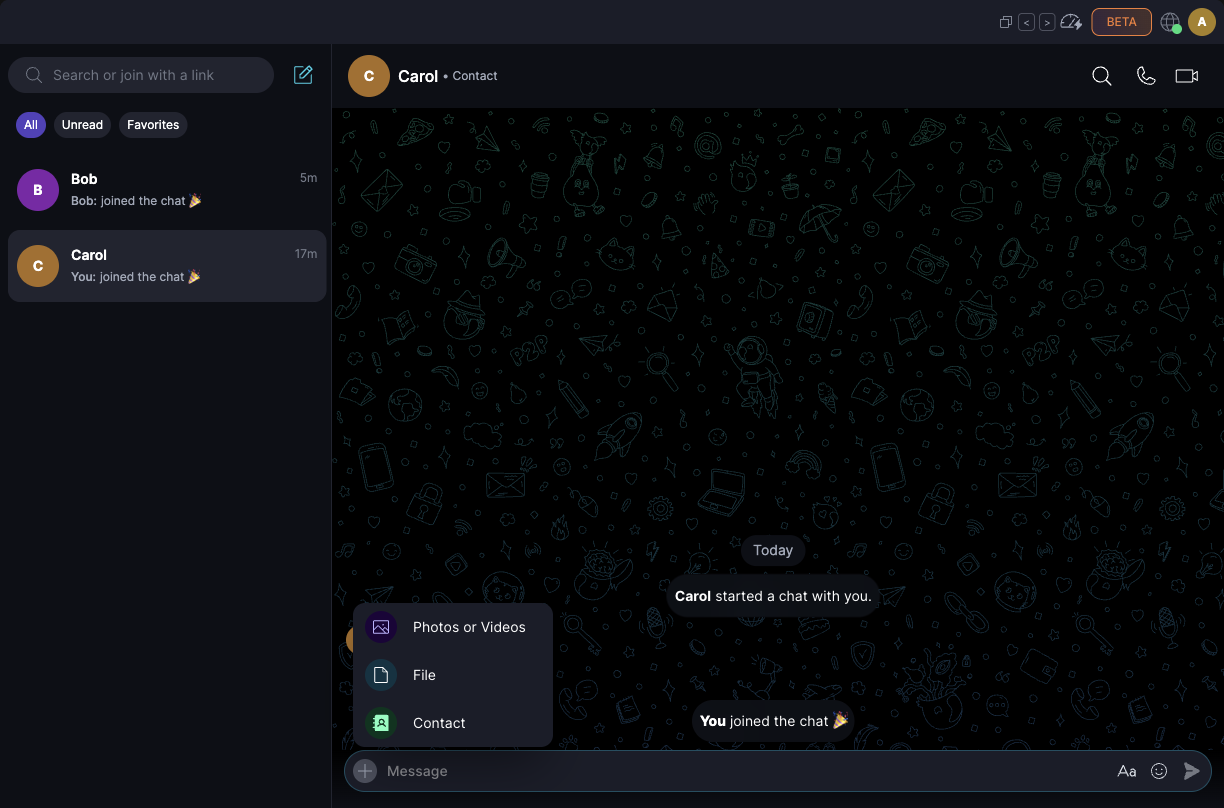
Open a DM and click the + button next to the message box, then choose 'Contact':
-
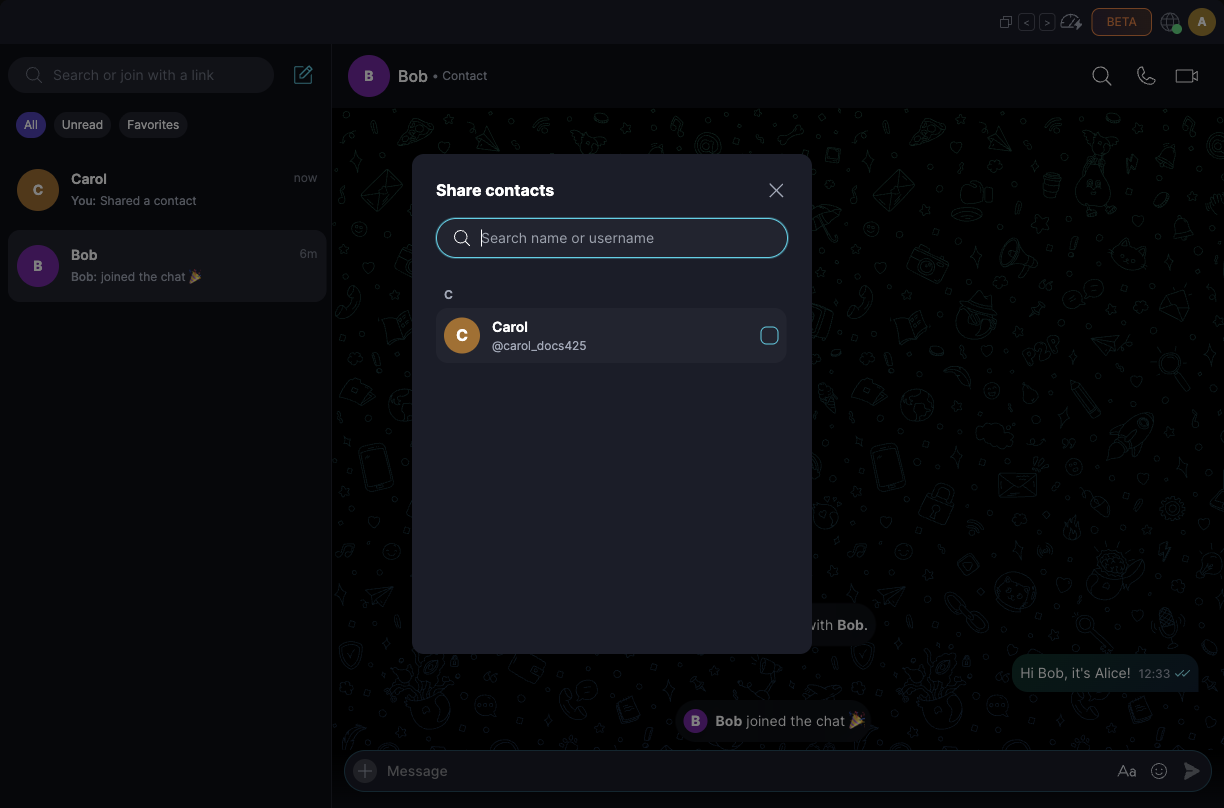
In 'Share contacts', search by name or username, or pick from the list. You can select more than one contact:
-
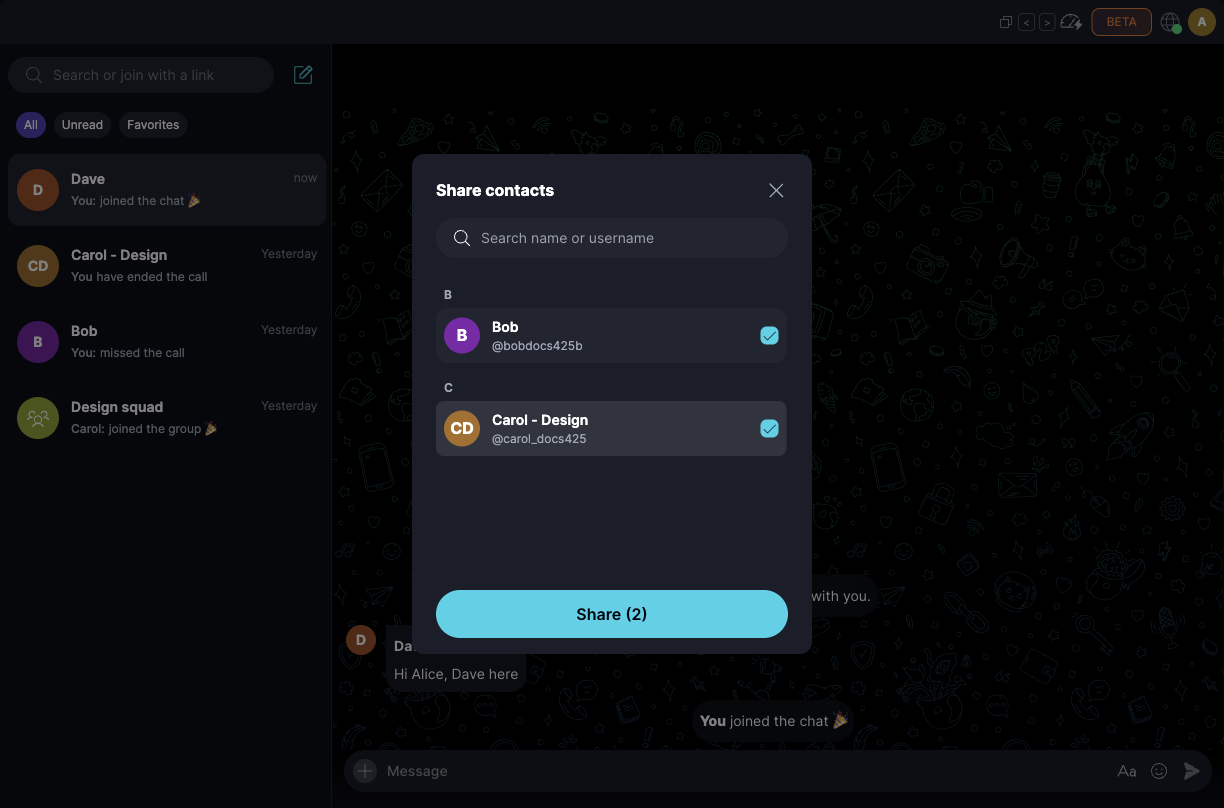
Click 'Share' to send them. The button shows how many contacts you've selected, for example 'Share (2)':
-
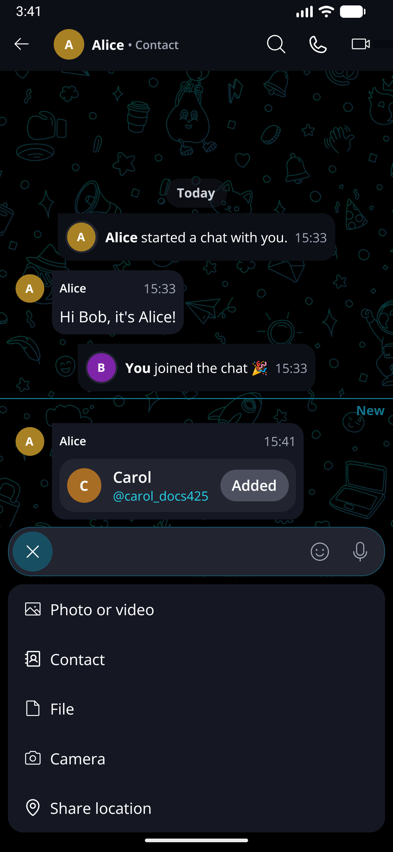
Open a DM and tap the + button next to the message box, then choose 'Contact':
-
In 'Share contacts', search by name or username, or pick from the list. You can select more than one contact:
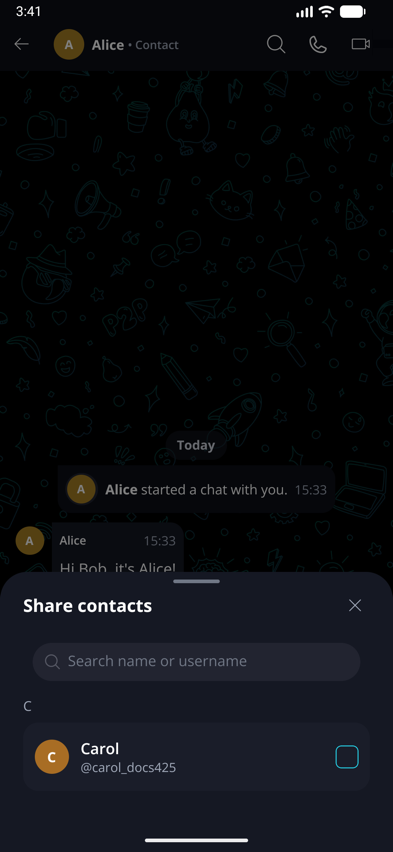
-
Tap 'Share 1 contact' (or 'Share N contacts' if you picked several) to send them:
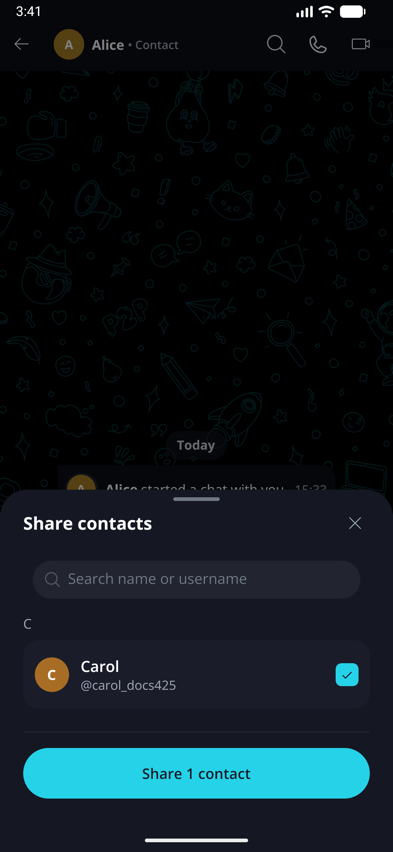
Keet sends each contact as its own card, so sharing two contacts puts two cards in the chat. The list doesn't include the person you're chatting with, or contacts you've blocked.
Want to share your own profile instead? See Messaging on Keet to share your username or QR code.
What does the other person see?
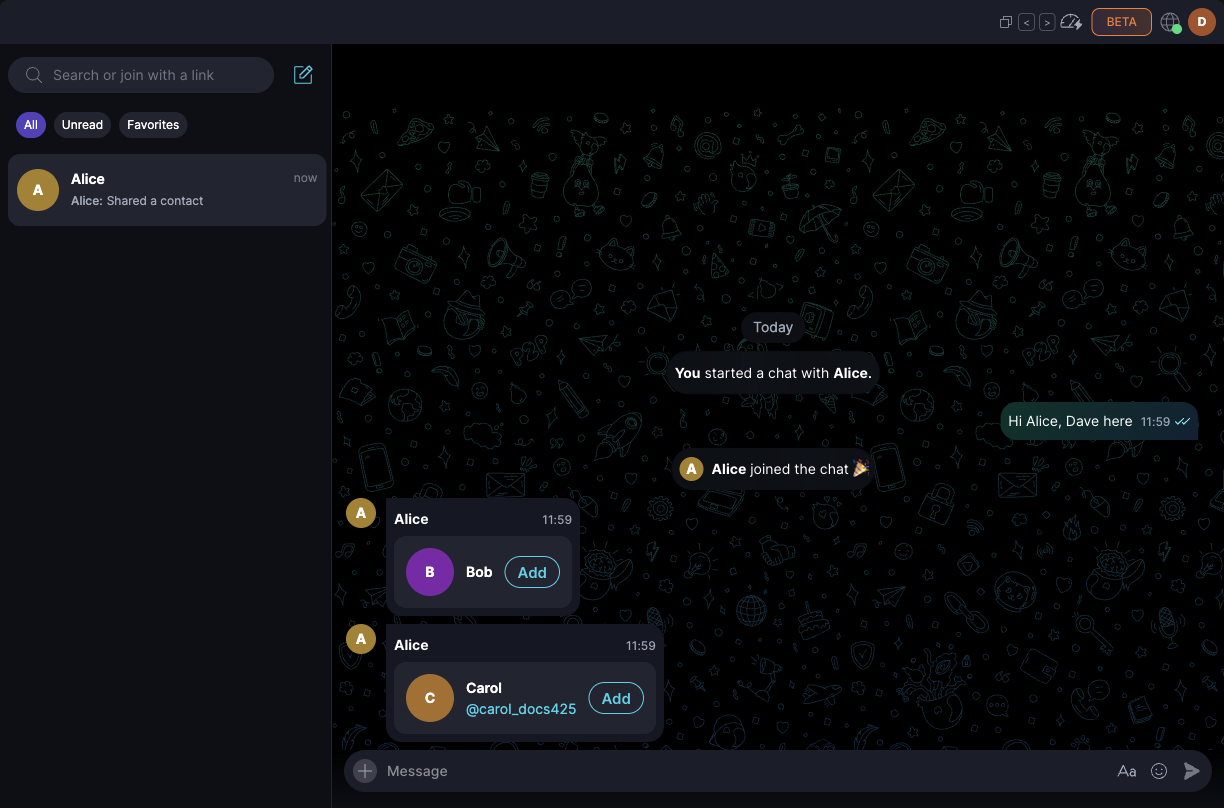
In the chat, they see the contact card with an 'Add' button. If they already have that contact saved, the button reads 'Added' instead.
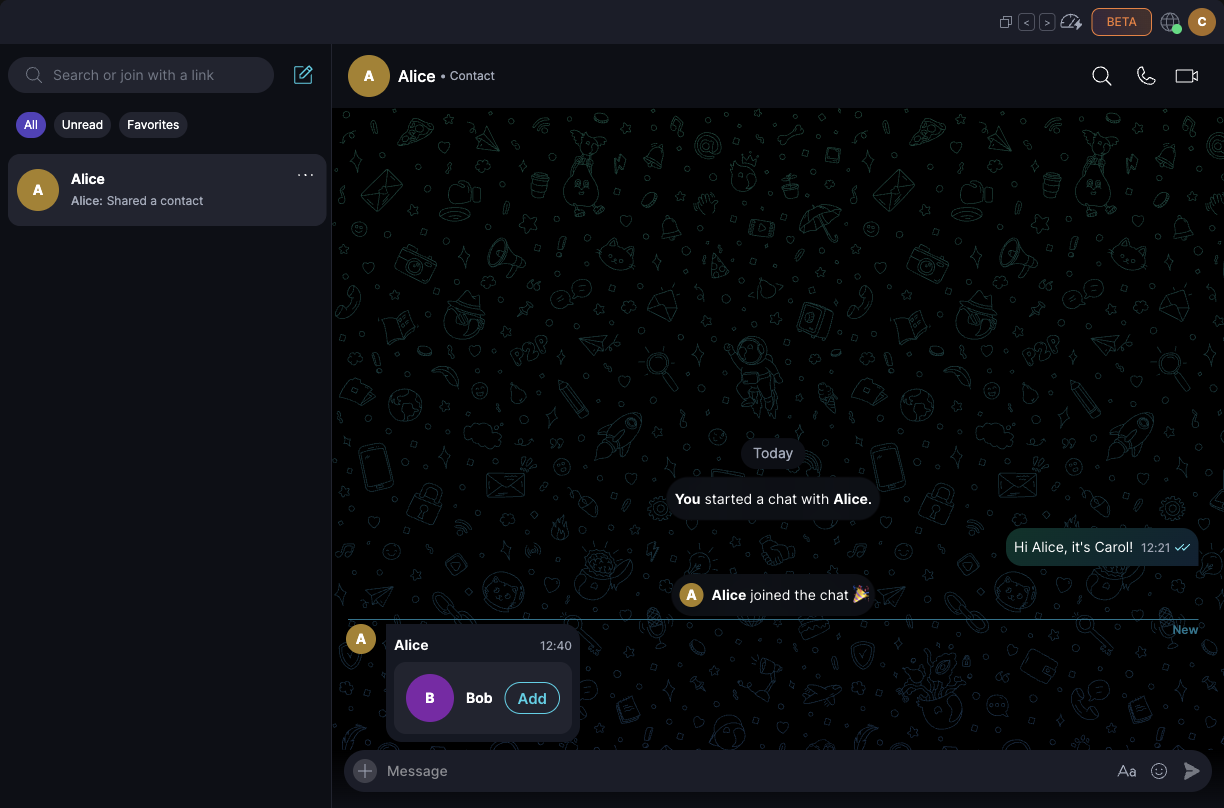
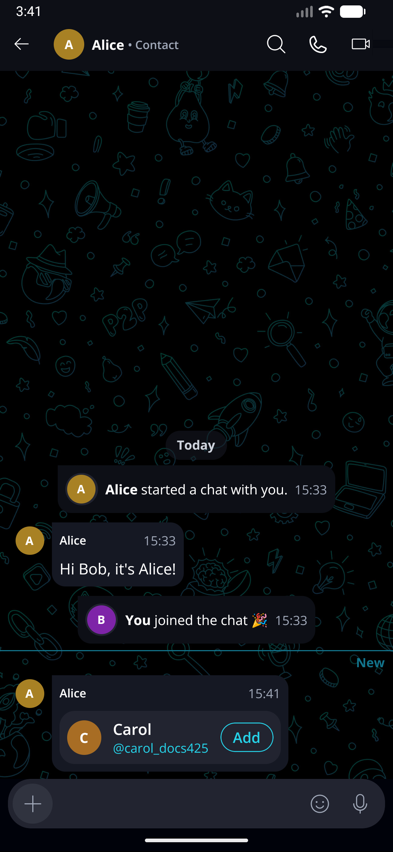
- If they select 'Add', Keet saves the contact to their Contact Book and shows 'Added to your contact list'. The button changes to 'Added'.
- If they don't, nothing happens. The card stays in the chat and doesn't interrupt the conversation.
- On desktop, once the contact is in their Contact Book, selecting the name or avatar on the card opens the contact's profile.
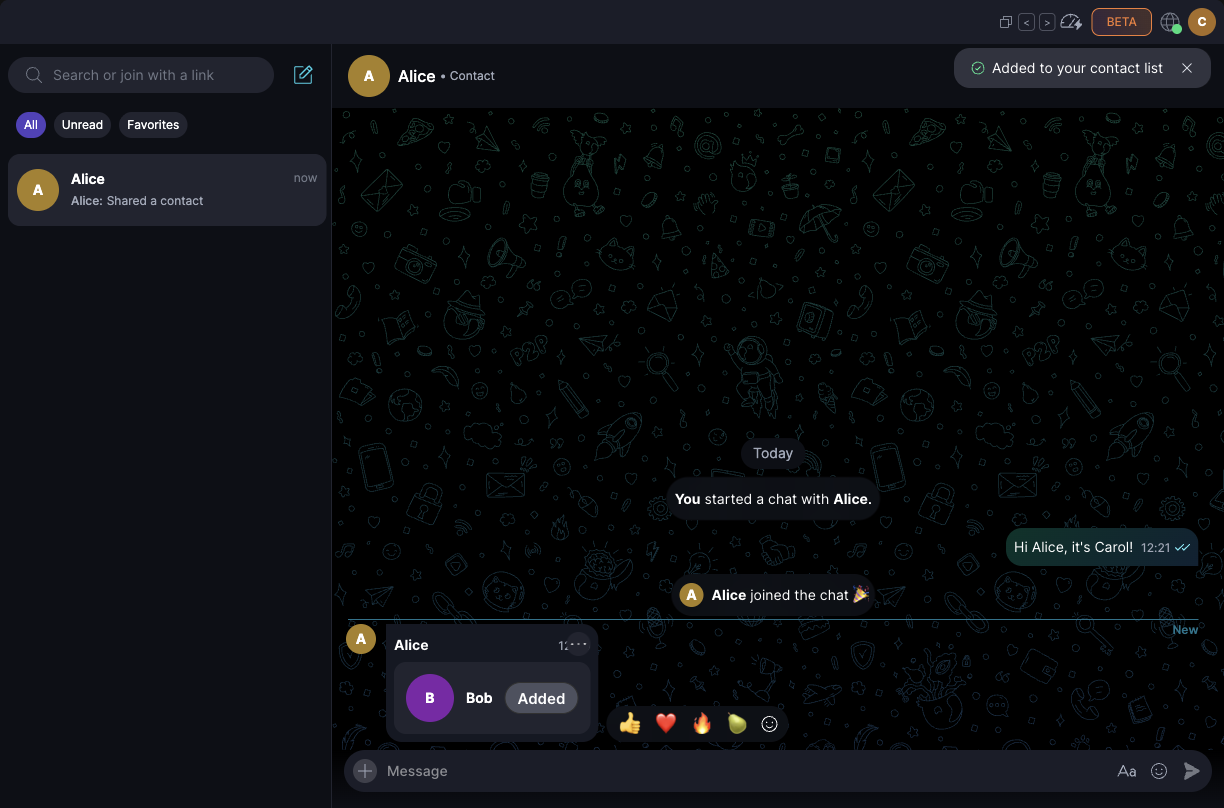
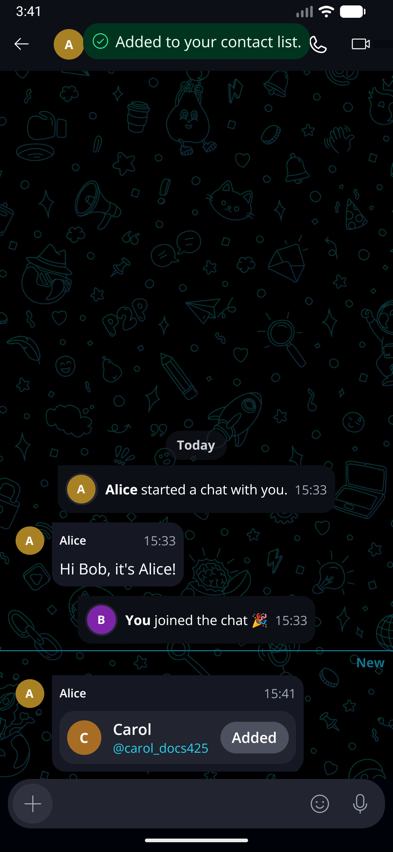
When you share several contacts, each one arrives as its own card:
On your side, the card you sent appears on the right of the chat, without a button:
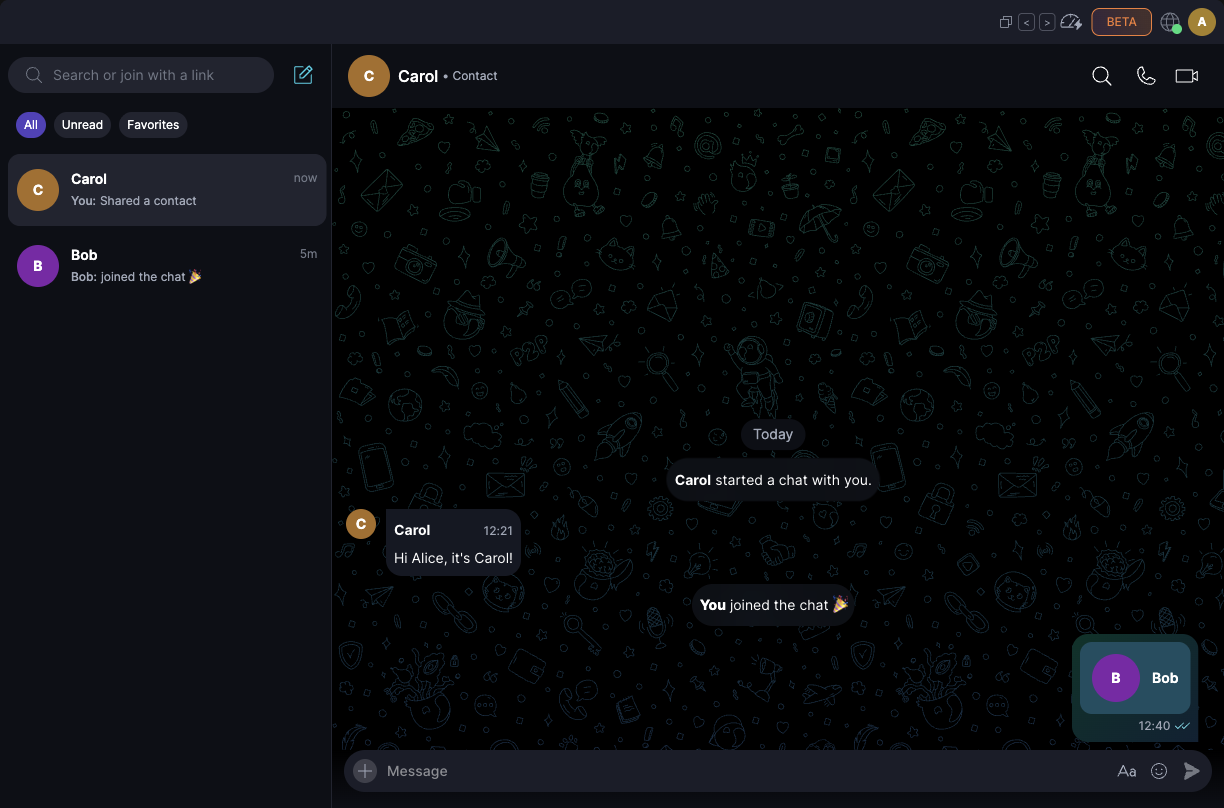
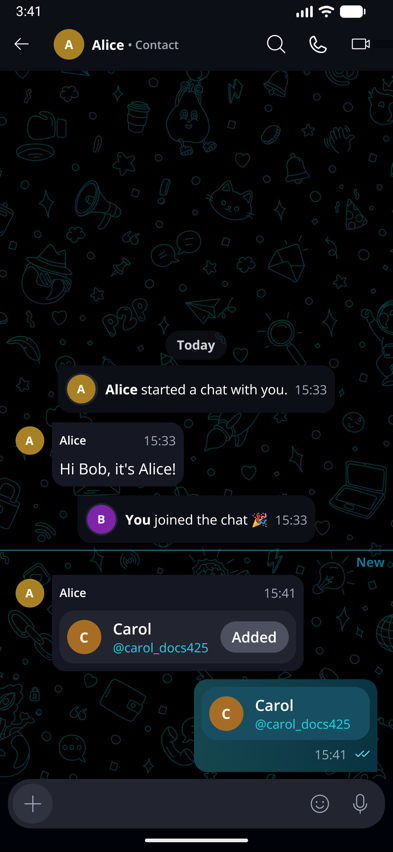
In the chat list and in replies, a shared contact shows as 'Shared a contact'. You can reply to a contact card or pin it.
What stays private?
- Your alias and private note for a contact are never included. The card only carries the contact's public profile.
- The person whose contact you share isn't contacted. Only the person you're chatting with receives the card.